The Customer App
This is your control room: where you watch a workflow run, read what it concluded, and see what it cost. The decisions themselves stay in the Inbox; the Portfolio is where you see how your programs are doing.
A note on the name: Customer app is our label for it, not a description of what is inside. It is your console — the organization's own view of its own runs. It is a separate application with its own sign-in origin, deliberately kept apart from the internal builder used to author workflows.
What you see
A persistent left rail carries five areas.
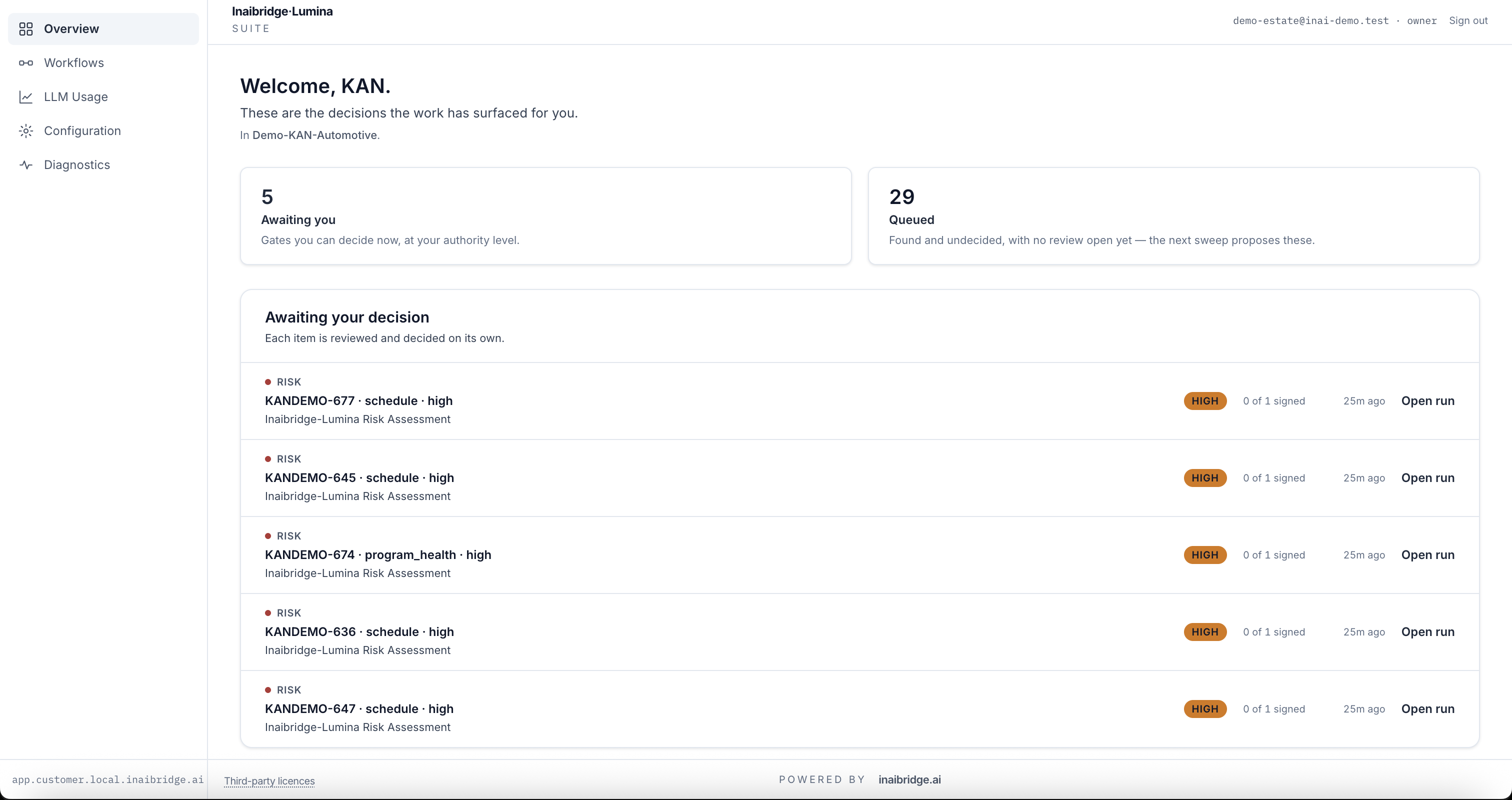
- Overview — what awaits a decision, and what is queued behind it.
- Workflows — your workflows, and a focused view of any one of them.
- LLM Usage — what the intelligence is costing you.
- Configuration — models, secrets, and variables for your organization.
- Diagnostics — whether the capabilities you depend on are actually reachable.
Overview: what needs you
The landing screen leads with decisions rather than a summary of the product, because a decision is the thing only you can make.
Two numbers sit at the top, and they are deliberately kept separate:
- Awaiting you — gates that you can actually decide. This is user-scoped on the server: a gate that somebody else must decide never appears here and is never counted.
- Queued — live items that have no gate yet, counted across the four decision kinds (Risk, Governance, Lesson, Close-out). Anything that already has a gate is excluded, so the two numbers can never double-count the same item.
There is deliberately no third "ready now" figure. Awaiting you already counts only actionable gates, so a third number would either restate it or name a state that does not exist.
Each waiting item opens the run it came from, so you can see the work in context before acting on it. Note the verb: this surface shows you what is waiting and takes you to the evidence — the decision itself is made in the Inbox, where the queues, the review context, and the signed record live.
Runs, and how a run reasoned
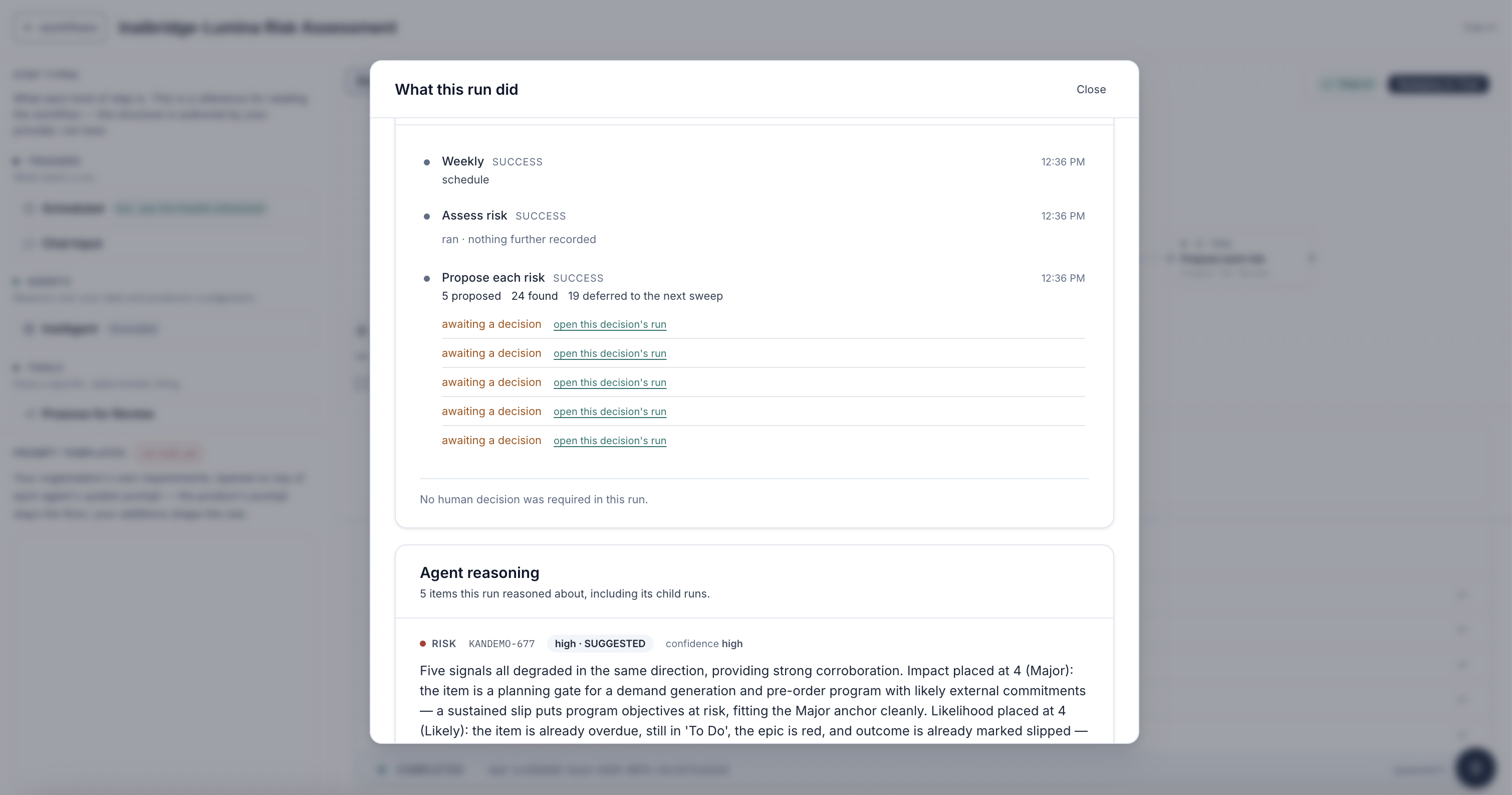
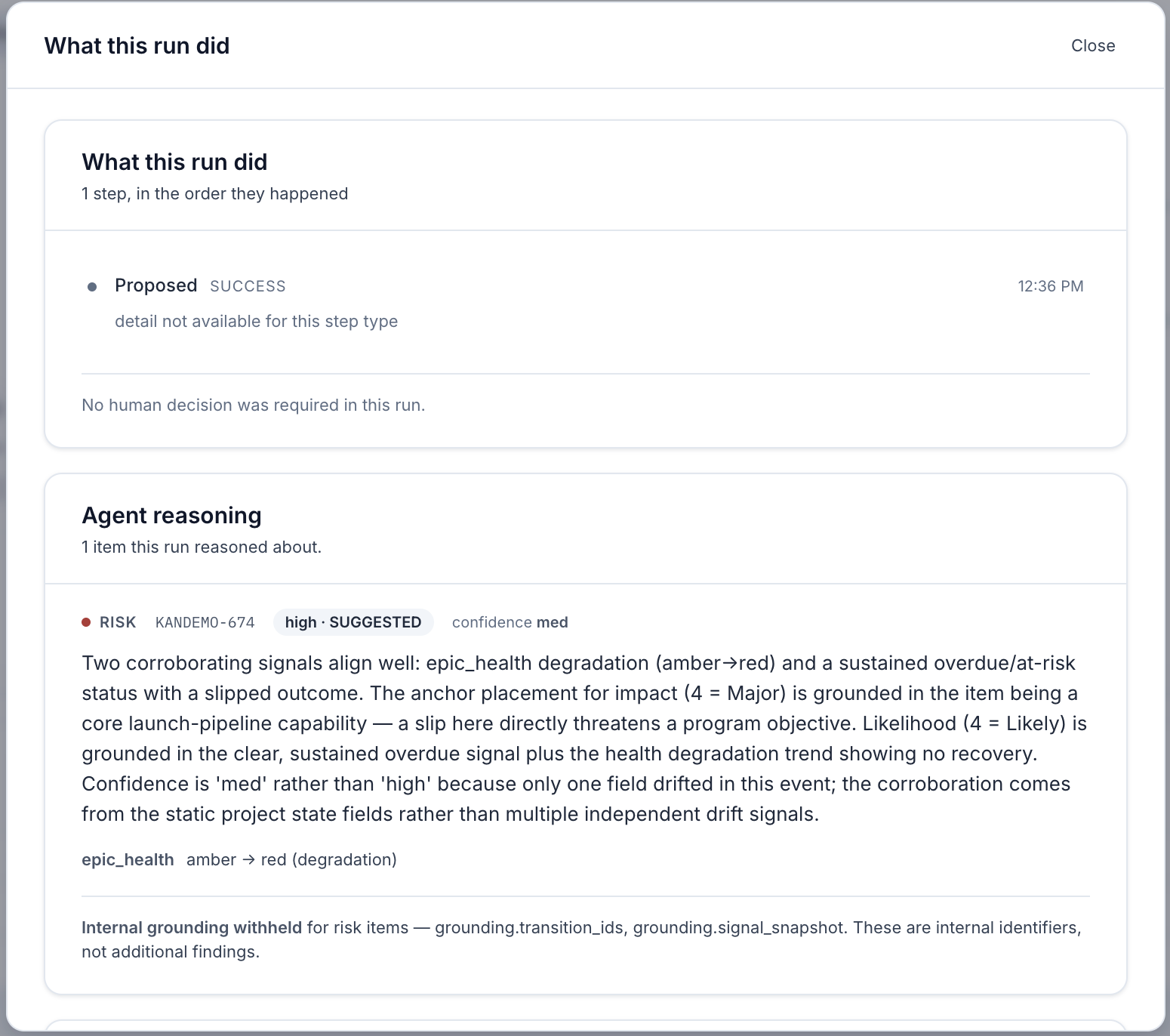
Selecting a workflow opens a focused view of it. Below it, an executions band lists the workflow's runs. Opening one shows what happened step by step, and — where an agent was involved — what it actually concluded, attributed to the agent rather than blended into the narrative.
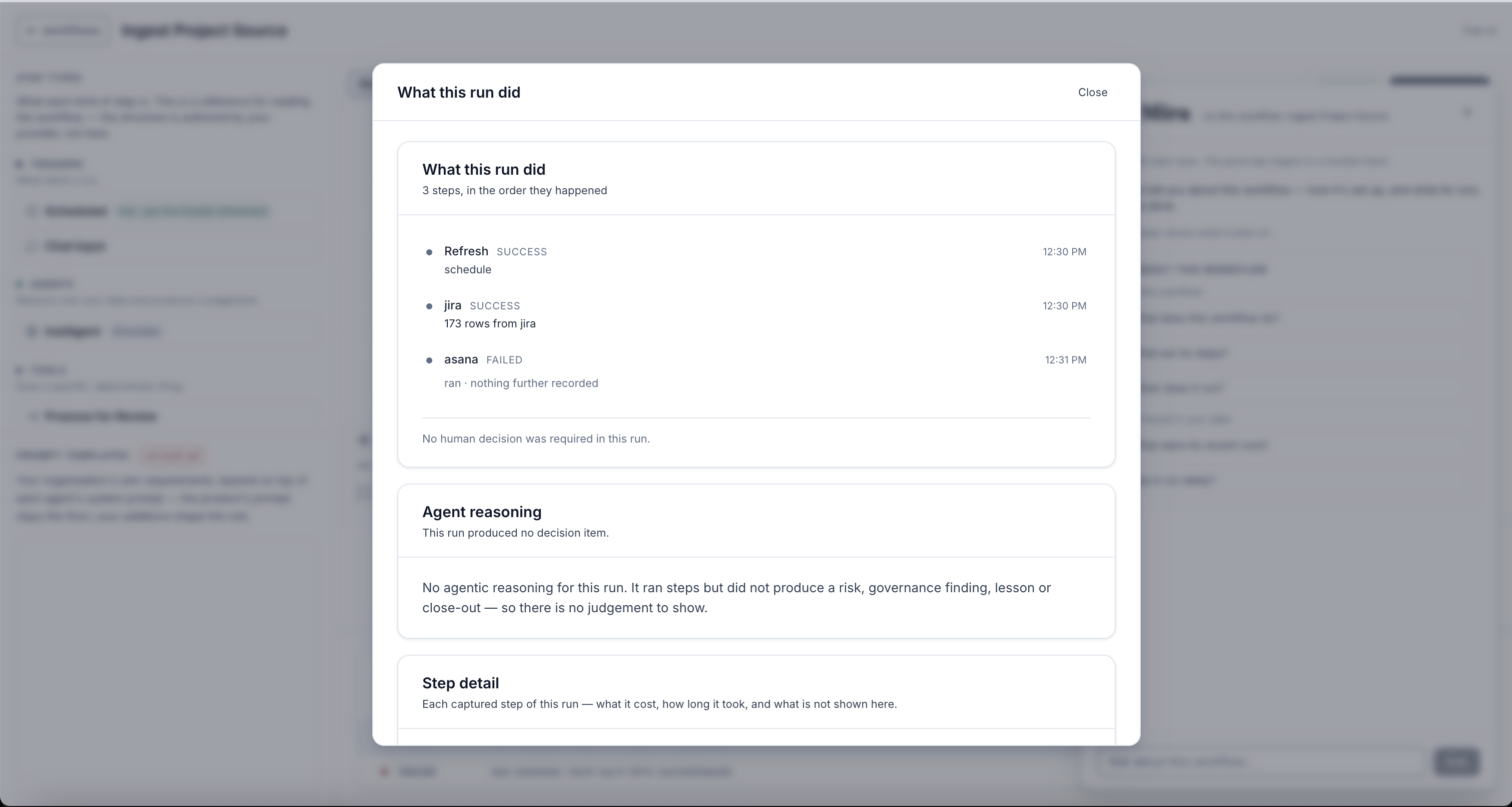
Nothing here is smoothed over. A step that failed is listed as failed, and a run that reasoned about nothing says so in those words rather than presenting an empty panel as a clean result.
Where a run involved a human decision, the record distinguishes two voices that must never be merged: what the agent reasoned, and what a named person recorded as their reason. Each is attributed to its own source.
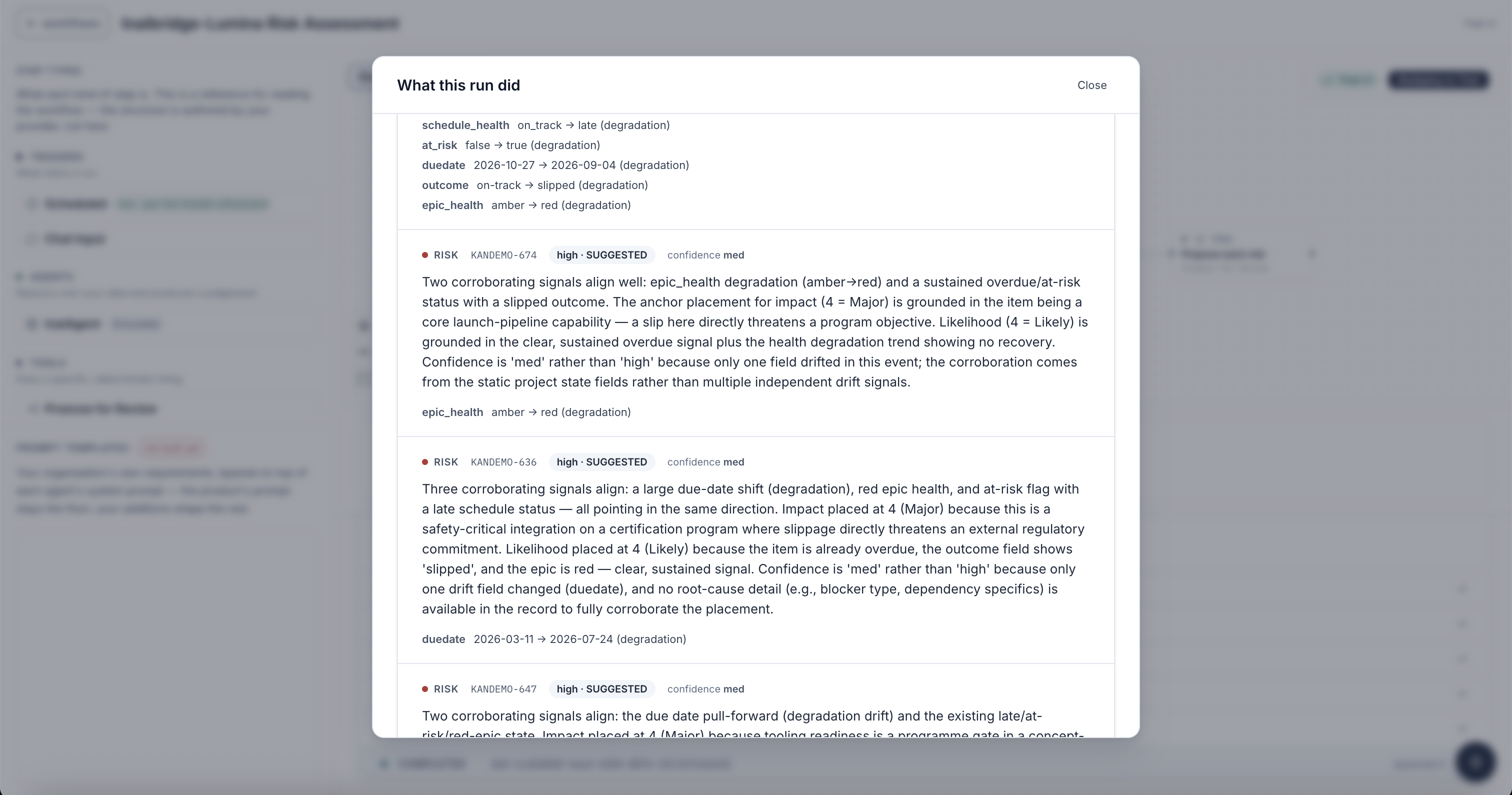
The reasoning is shown in full rather than summarized into a score. For each item the agent states which signals it relied on, where it placed impact and likelihood, and — importantly — why its confidence is not higher, so a judgement that rests on thin evidence says so itself.
For runs that trigger further runs, a run chain shows the relationship rather than presenting them as unrelated events.
What it costs
The LLM Usage area shows what the intelligence is costing you — spend and call counts, broken down by surface and by program.
Ask Mira about this workflow
The focused workflow view includes Mira, opened from the workflow plane. Here Mira is scoped to the workflow you have open — its configuration, its run history, and what the agent concluded on those runs.
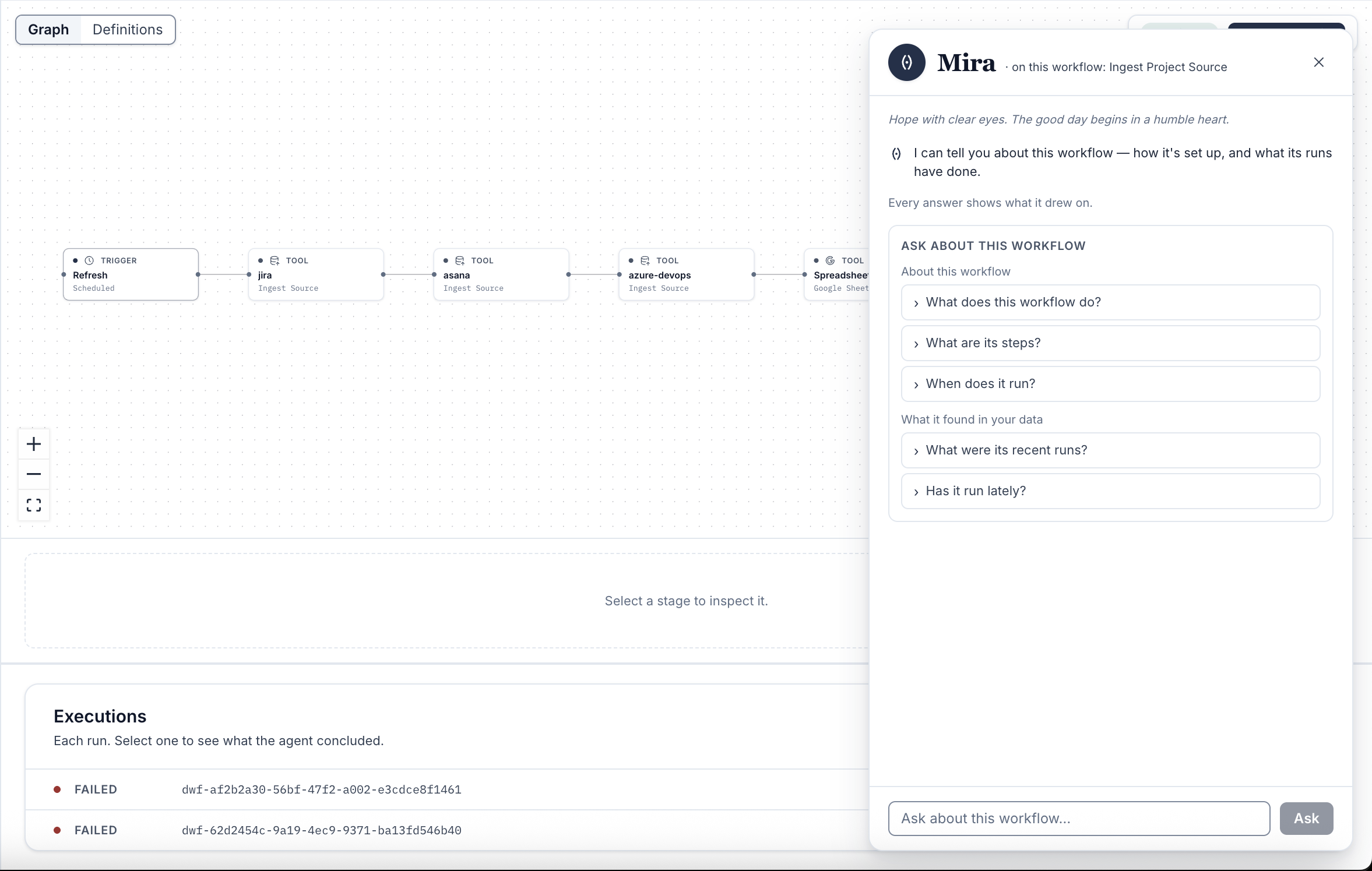
That scope is deliberately narrow. Portfolio-wide health says nothing about the workflow in front of you, so it is not in the grounding here; when a question falls outside this workflow's records, Mira says so rather than reaching for something adjacent. As everywhere else, Mira states what that grounding is and answers only from it.
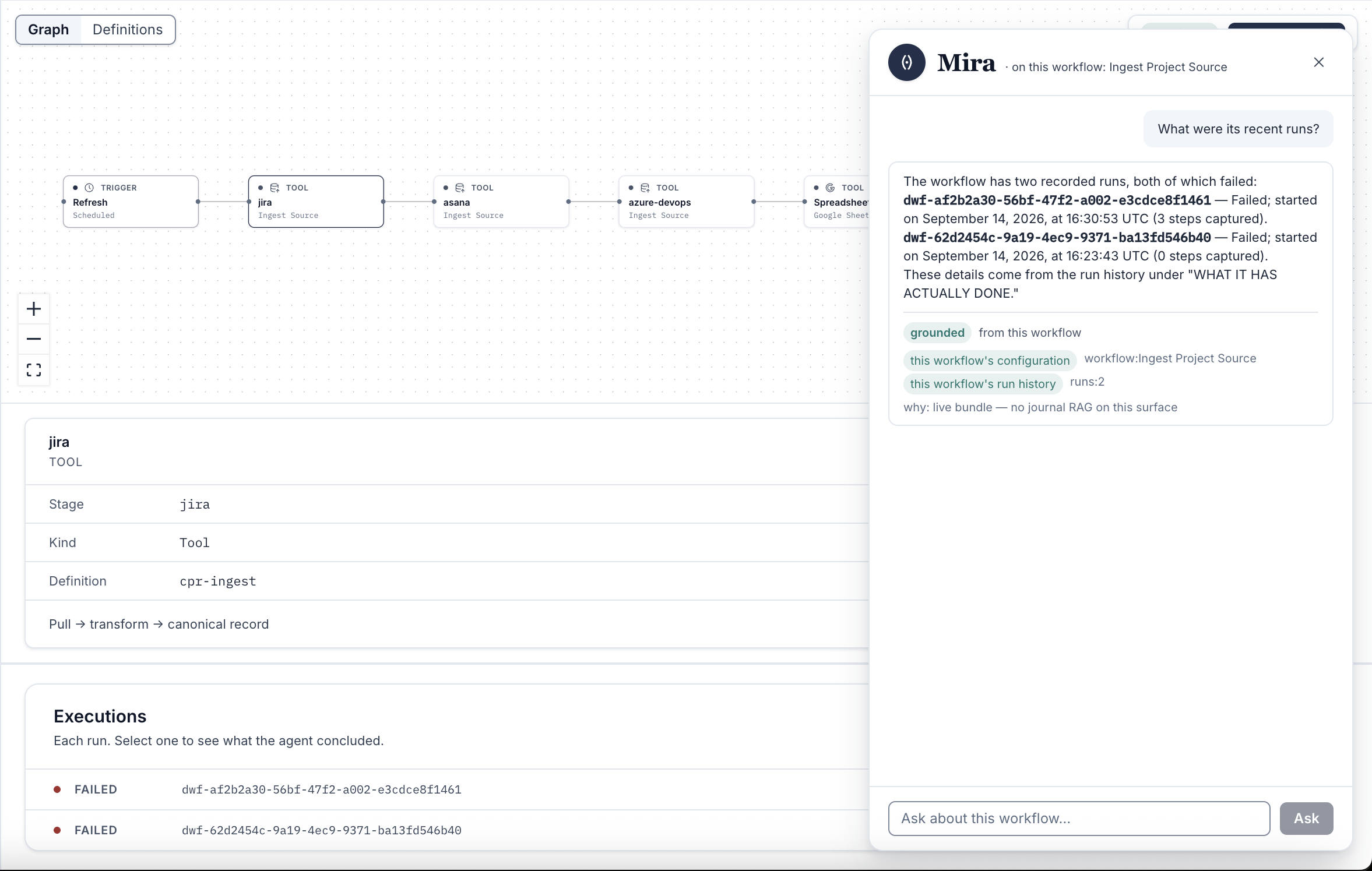
Every answer carries what it was grounded in. The panel names the sources beneath the reply, so the basis for an answer is visible rather than taken on trust — and an unwelcome answer, such as both runs having failed, is reported as plainly as a favourable one.
Operating runs
Publishing a workflow, making sense of one somebody else authored, choosing models, storing credentials, naming the external services your workflows may call, the detail behind the usage figures, and the health checks are all administrator work. They are covered in the administrator reference for operating runs, which your InaiBridge contact can provide.